SAS/ACCESS Usage with SAS Viya
- Overview of Data Flow for SAS Viya
- Tools That Are Available
- Suggested Workflow for Data Sources with Data Connectors
- Suggested Workflow for Data Sources without Data Connectors
Overview of Data Flow for SAS Viya
Statements That Move Data in SAS Viya
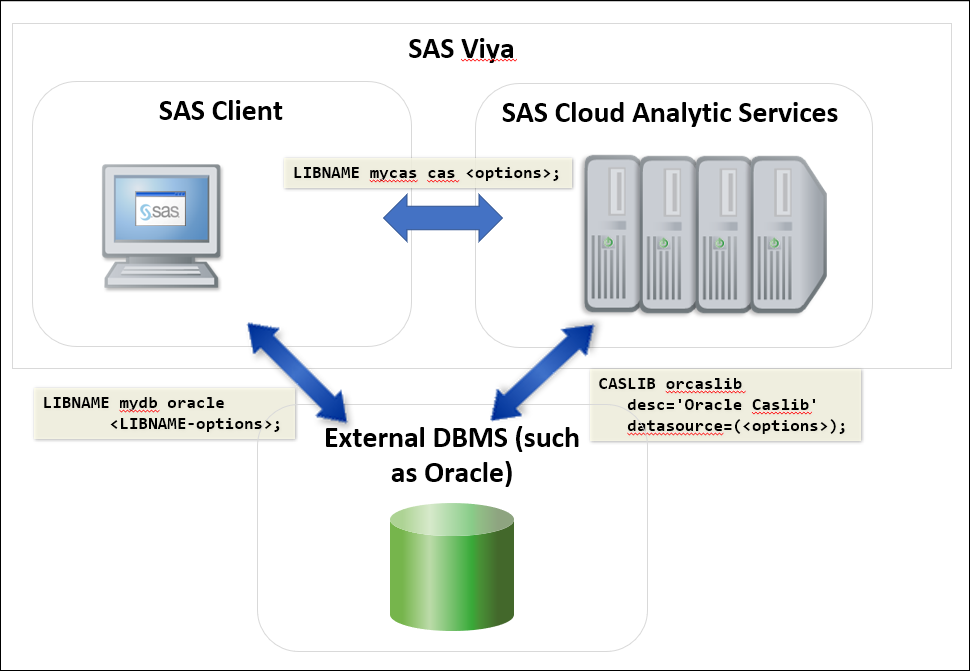
The preceding figure shows the SAS statements that you use to move your data between SAS Viya components and your external data source.
If you have a data connector, use a CASLIB statement to open a connection between your data source, such as an Oracle database, and the CAS server. You then use the CASUTIL or CAS procedures to load your data into CAS.
To open a connection between the SAS client and your database, use a LIBNAME statement for your database engine. Use this statement if there is not a data connector for your interface or if you do not need to use the CAS server to analyze your data. You can then work with your data using a DATA step, a call to PROC SQL, or other SAS statements.
To open a connection between the SAS client and the CAS server, use a LIBNAME statement for the CAS engine.
Tools That Are Available
- SAS/ACCESS interface
-
enables you to connect your external data source with the local SAS client. Use the LIBNAME statement to connect to a data source location.
- CAS LIBNAME engine
-
enables you to connect the local SAS client with your CAS session so that you can access data in CAS tables. Use the CAS LIBNAME statement to connect to a CAS session.
- data connector or data connect accelerator
-
enables you to specify options that are used to connect your external data source with the CAS server. For more information, see Quick Reference for Data Connector Syntax in SAS Cloud Analytic Services: User’s Guide.
By using the LOAD statement in PROC CASUTIL, you use a data connector to load data into a caslib on the CAS server.
By using the SAVE statement in PROC CASUTIL, you use a data connector to save CAS data to a table in your external data source.
- SQL procedure
-
enables you to manipulate data in your external data source. Use PROC SQL to perform joins or filter your data before loading it into a caslib. For more information, see the information about using the SQL pass-through facility for your data source or SAS SQL Procedure User’s Guide.
Suggested Workflow for Data Sources with Data Connectors
Here are the general steps to manage and manipulate your data from an external data source that has a corresponding data connector.
- Perform any necessary
data preparation before loading data into CAS. For example, if you
want to load the join result of two Hive tables into CAS, create a
Hive table or view that is the result of the join. You can then load
the resulting table or view into CAS.
Perform the data preparation by interacting directly with your data source or by using the SQL procedure in SAS.
- Load the data into CAS using a data connector or data connect accelerator. For more information, see Quick Reference for Data Connector Syntax in SAS Cloud Analytic Services: User’s Guide.
- Perform analysis on your data. You can use the DATA step, procedures that work with CAS, and CAS actions on your data. Save results to CAS tables in a caslib. For more information, see SAS Viya Quick Start and SAS Cloud Analytic Services: Fundamentals.
- (Optional) Use the data connector, via PROC CASUTIL, to save results back to your external data source. As shown in the code below, you can save a result table, Casresults, using a SAVE statement that saves data in the Hadoop data source in a table called Myresults.
/* Add a caslib for loading and analyzing Hadoop data. */
caslib casref datasource=(srctype='hadoop',
                           dataTransferMode='parallel',
                           server='HiveServer2',
                           username='user1'
                           hadoopJarPath="//root/myJars",
                           hadoopConfigDir="//sasroot/myConfig");

/* Specify a libref to access a Hadoop database.                         */
/* Although it is not shown here, you can use PROC SQL to access data in */
/* libref h to merge or filter data prior to reading it into CAS.        */
libname h hadoop user=user1 pwd=mypwd1 server='HiveServer2' schema=statsdiv;

/* Specify a libref to connect the SAS client with a CAS session.           */
/* By default, the connection goes to the active caslib.                    */
/* You can run  procedures that are not CAS procedures by accessing         */
/* CAS data using the c libref.                                             */
libname c cas;

/* Load data into CAS.  */
proc casutil incaslib="casref";
   load casdata="myhivedata" casout="mycasdata";
quit;

/* Additional code to run analyses goes here */

/* Write results table back out to Hadoop */
proc casutil incaslib="casref";
   save casdata="casresults" casout="Myresults";
quit;
Suggested Workflow for Data Sources without Data Connectors
If you have a SAS/ACCESS interface that is supported in SAS Viya but that does not have a corresponding data connector, you can still load your data onto the CAS server. Here are the interfaces that fall into this category:
- Greenplum
- HAWQ
- Netezza
- SAP ASE
The R/3 interface is also supported in SAS Viya, although it does not have a corresponding data connector. For more information about the R/3 interface, see SAS/ACCESS Interface to R/3: User’s Guide.
Here are the general steps to manage and manipulate your data in SAS Viya without a corresponding data connector.
- Perform any necessary
data preparation before loading data into the SAS client. For example,
if you want to load the join result of two Hive tables into CAS, create
a Hive table that is the result of the join. You can then load the
resulting table into CAS.
Perform the data preparation by interacting directly with your data source or by using the SQL procedure in SAS.
- Establish a connection between the SAS client and your database by specifying a libref in a LIBNAME statement. You can then load your data into the SAS client using a DATA step.
- Establish a connection between the SAS client and a CAS session by using a CAS LIBNAME statement. You can then load your data into a CAS table on the CAS server.
- Perform analysis on your data in a CAS session. You can use the DATA step, procedures that work with CAS, and CAS actions on your CAS table. For more information, see SAS Viya Quick Start and SAS Cloud Analytic Services: Fundamentals.
- (Optional) You can load a CAS table that contains analysis results back into a SAS table using your CAS libref. If you want, you can load the SAS table back to your original database using your external database libref.
/* Add a libref to access a Greenplum database. */
libname mydblib greenplm server=mygpserver db=customers port=5432
                user=myuser password=gppwd;

/* Add a libref to the CAS server. */
libname c cas;

/* Load data into the SAS client. */
data mysasdat;
   set mydblib.myGPtab;
run;

/* Load SAS client data into a CAS session.              */
/* By default, the connection goes to the active caslib. */
data c.mycasdat;
   set mysasdat;
run;

/* Additional code to run analyses in CAS goes here. */

/* Optional: write CAS results back to the SAS client. */
data myreslts;
   set c.results;
run;

/* Optional: write the results out to the Greenplum database. */
data mydblib.results;
   set myreslts;
run;