WINDOW Statement
Creates customized windows for your applications.
| Valid in: | DATA step |
|---|---|
| Category: | Window Display |
| Type: | Declarative |
| Restriction: | This statement is not supported in a DATA step that runs in CAS. |
Table of Contents
- Syntax
- Arguments
- Details
- The Basics
- Field Definitions
- Automatic Variables
- Displaying Windows
- Comparisons
- Examples
- Example 1: Creating a Single Window
- Example 2: Displaying Two Windows Simultaneously
- Example 3: Persisting and Nonpersisting Fields
- Example 4: Sending a Message
- Example 5: Creating a SAS Data Set
- See Also
Syntax
Arguments
window
specifies the window name.
| Restriction | Window names must conform to SAS naming conventions. |
|---|
window-options
specifies characteristics of the window as a whole. Specify these window-options before any field or GROUP= specifications:
COLOR=color
specifies the color of the window background for operating environments that have this capability. In other operating environments, this option affects the color of the window border. These colors are available:
| BLACK | MAGENTA |
| BLUE | ORANGE |
| BROWN | PINK |
| CYAN | RED |
| GRAY | WHITE |
| GREEN | YELLOW |
| Default | If you do not specify a color with the COLOR= option, the window's background color is device-dependent instead of black, and the color of a field is device-dependent instead of white. |
|---|---|
| Tip | The representation of colors might vary, depending on the monitor being used. COLOR= has no effect on monochrome monitors. |
COLUMNS=columns
specifies the number of columns in the window.
| Default | The window fills all remaining columns on the monitor; the number of columns that are available depends on the type of monitor that is being used. |
|---|
ICOLUMN=column
specifies the initial column within the monitor at which the window is displayed.
| Default | SAS displays the window at column 1. |
|---|
IROW=row
specifies the initial row (or line) within the monitor at which the window is displayed.
| Default | SAS displays the window at row 1. |
|---|
KEYS=<<libref.>catalog.>keys-entry
specifies the name of a KEYS entry that contains the function key definitions for the window.
| Default | SAS uses the current function key settings that are defined in the KEYS window. |
|---|---|
| Tips | If you specify only an entry name, SAS looks in the SASUSER.PROFILE
catalog for a KEYS entry of the name that is specified. You can also
specify the three-level name of a KEYS entry, in the form
|
| To create a set of function key definitions for a window, use the KEYS window. Define the keys as you want, and use the SAVE command to save the definitions in the SASUSER.PROFILE catalog or in a SAS library and catalog that you specify. |
MENU=<<libref.>catalog.>pmenu-entry
specifies the name of a menu (pmenu) you have built with the PMENU procedure.
| Tip | If you specify only an entry name, SAS looks in the SASUSER.PROFILE
catalog for a PMENU entry of the name specified. You can also specify
the three-level name of a PMENU entry in the form
|
|---|
ROWS=rows
specifies the number of rows (or lines) in the window.
| Default | The window fills all remaining rows on the monitor. |
|---|---|
| Tip | The number of rows that are available depends on the type of monitor that is being used. |
field-definition(s)
specifies and describes a variable or character string to be displayed in a window or within a group of related fields.
| Tips | A window or group can contain any number of fields, and you can define the same field in several groups or windows. |
|---|---|
| You can specify multiple field-definitions. | |
| See | Field Definitions |
group-definition(s)
specifies a group and defines all fields within a group. A group definition consists of two parts: the GROUP= option and one or more field definitions.
GROUP=group
specifies a group of related fields.
| Default | A window contains one unnamed group of fields. |
|---|---|
| Restriction | group must be a SAS name. |
| Tips | When you refer to a group in a DISPLAY statement, write the name as window.group. |
| A group contains all fields in a window that you want to display at the same time. Display various groups of fields within the same window at different times by naming each group. Choose the group to appear by specifying window.group in the DISPLAY statement. | |
| Specifying several groups within a window prevents repetition of window options that do not change and helps you keep track of related displays. For example, if you are defining a window to check data values, arrange the display of variables and messages for most data values in the data set in a group that is named STANDARD. Arrange the display of different messages in a group that is named CHECKIT that appears when data values meet the conditions that you want to check. |
Details
The Basics
You can use the WINDOW statement in the SAS windowing environment, in interactive line mode, or in noninteractive mode to create customized windows for your applications. (footnote 1) Windows that you create can display text and accept input; they have command and message lines. The window name appears at the top of the window. Use commands and function keys with windows that you create. A window definition remains in effect only for the DATA step that contains the WINDOW statement.
Define a window before you display it. Use the DISPLAY statement to display windows that are created with the WINDOW statement. For more information, see DISPLAY Statement.
Field Definitions
Use a field definition to identify a variable or a character string to be displayed, its position, and its attributes. Enclose character strings in quotation marks. The position of an item is its beginning row (or line) and column. Attributes include color, whether you can enter a value into the field, and characteristics such as highlighting.
You can define a field to contain a variable value or a character string, but not both. The form of a field definition for a variable value is
The form for a character string is
The elements of a field definition are described here.
row column
specifies the position of the variable or character string.
SAS keeps track of its position in the window with a pointer. For example, when you tell SAS to write a variable's value in the third column of the second row of a window, the pointer moves to row 2, column 3 to write the value. Use the pointer controls that are listed here to move the pointer to the appropriate position for a field.
In a field definition, row can be one of these row pointer controls:
#n
specifies row n within the window.
| Range | n must be a positive integer. |
|---|
#numeric-variable
specifies the row within the window that is given by the value of numeric-variable.
| Restriction | #numeric-variable must be a positive integer. If the value is not an integer, the decimal portion is truncated and only the integer is used. |
|---|
#(expression)
specifies the row within the window that is given by the value of expression.
| Restrictions | expression can contain array references and must evaluate to a positive integer. |
|---|---|
| Enclose expression in parentheses. |
/
moves the pointer to column 1 of the next row.
In a field definition, column can be one of these column pointer controls:
@n
specifies column n within the window.
| Restriction | n must be a positive integer. |
|---|
@numeric-variable
specifies the column within the window that is given by the value of numeric-variable.
| Restriction | numeric-variable must be a positive integer. If the value is not an integer, the decimal portion is truncated and only the integer is used. |
|---|
@(expression)
specifies the column within the window that is given by the value of expression.
| Restrictions | expression can contain array references and must evaluate to a positive integer. |
|---|---|
| Enclose expression in parentheses. |
+n
moves the pointer n columns.
| Range | n must be a positive integer. |
|---|
+numeric-variable
moves the pointer the number of columns that is given by the numeric-variable.
| Restriction | +numeric-variable must be a positive or negative integer. If the value is not an integer, the decimal portion is truncated and only the integer is used. |
|---|
| Default | If you omit row in the first field of a window or group, SAS uses the first row of the window. If you omit row in a later field specification, SAS continues on the row that contains the previous field. If you omit column, SAS uses column 1 (the left border of the window). |
|---|---|
| Tip | Although you can specify either row or column first, the examples in this documentation show the row first. |
variable
specifies a variable to be displayed or to be assigned the value that you enter at that position when the window is displayed.
| Tips | variable can be the name of a variable or of an array reference. |
|---|---|
| To allow a variable value in a field to be displayed but not changed by the user, use the PROTECT= option (described later in this section). You can also protect an entire window or group for the current execution of the DISPLAY statement by specifying the NOINPUT option in the DISPLAY statement. | |
| If a field definition contains the name of a new variable, that variable is added to the data set that is being created (unless you use a KEEP or DROP specification). |
format
gives the format for the variable.
| Default | If you omit format, SAS uses an informat and format that are specified elsewhere (for example, in an ATTRIB, INFORMAT, or FORMAT statement or permanently stored with the data set) or a SAS default informat and format. |
|---|---|
| Tips | If a field displays a variable that cannot be changed (that is, you use the PROTECT=YES option), format can be any SAS format or a format that you define with the FORMAT procedure. |
| If a field can both display a variable and accept input, you must either specify the informat in an INFORMAT or ATTRIB statement or use a SAS format such as $CHAR. or TIME. that has a corresponding informat. | |
| If a format is specified, the corresponding informat is assigned automatically to fields that can accept input. | |
| A format and an informat in a WINDOW statement override an informat and a format that are specified elsewhere. |
'character-string'
contains the text of a character string to be displayed.
| Restrictions | The character string must be enclosed in quotation marks. |
|---|---|
| You cannot enter a value in a field that contains a character string. |
options
Specify field definition attributes:
ATTR=highlighting-attribute
controls these highlighting attributes of the field:
| BLINK | causes the field to blink. |
| HIGHLIGHT | displays the field at high intensity. |
| REV_VIDEO | displays the field in reverse video. |
| UNDERLINE | underlines the field. |
| Alias | A= |
|---|---|
| Tips | To specify more than one highlighting attribute, use the
form ATTR=(highlighting-attribute-1,...) |
| The highlighting attributes that are available depend on the type of monitor that you use. |
AUTOSKIP=YES | NO
controls whether the cursor moves to the next unprotected field of the current window or group when you have entered data in all positions of a field.
| YES | specifies that the cursor moves automatically to the next unprotected field. |
| NO | specifies that the cursor does not move automatically. |
| Alias | AUTO= |
|---|---|
| Default | NO |
COLOR=color
specifies a color for the variable or character string. You can specify one of these colors:
| BLACK | MAGENTA |
| BLUE | ORANGE |
| BROWN | PINK |
| CYAN | RED |
| GRAY | WHITE |
| GREEN | YELLOW |
| Alias | C= |
|---|---|
| Default | WHITE |
| Tips | The representation of colors might vary, depending on the monitor that you use. |
| COLOR= has no effect on monochrome monitors. |
DISPLAY=YES | NO
controls whether the contents of a field are displayed.
| YES | specifies that SAS displays characters in a field as you enter them in. |
| NO | specifies that the entered characters are not displayed. |
| Default | YES |
|---|
PERSIST=YES | NO
controls whether a field is displayed by all executions of a DISPLAY statement in the same iteration of the DATA step until the DISPLAY statement contains the BLANK option.
| YES | specifies that each execution of the DISPLAY statement displays all previously displayed contents of the field as well as the contents that are scheduled for display by the current DISPLAY statement. If the new contents overlap persisting contents, the persisting contents are no longer displayed. |
| NO | specifies that each execution of a DISPLAY statement displays only the current contents of the field. |
| Default | NO |
|---|---|
| Tip | PERSIST= is most useful when the position of a field changes in each execution of a DISPLAY statement. |
| Example | Persisting and Nonpersisting Fields |
PROTECT=YES | NO
controls whether information can be entered into a field.
| YES | specifies that you cannot enter information. |
| NO | specifies that you can enter information. |
| Alias | P= |
|---|---|
| Default | No |
| Tip | Use PROTECT= only for fields that contain variables; fields that contain text are automatically protected. |
REQUIRED=YES | NO
controls whether a field can be left blank.
| NO | specifies that you can leave the field blank. |
| YES | specifies that you must enter a value in the field. |
| Default | NO |
|---|---|
| Tip | If you try to leave a field blank that was defined with REQUIRED=YES, SAS does not allow you to enter values in any subsequent fields in the window. |
Automatic Variables
The WINDOW statement creates two automatic SAS variables: _CMD_ and _MSG_.
_CMD_
contains the last command from the window's command line that was not recognized by the window.
| Tip | _CMD_ is a character variable with a length of 80 bytes; its value is set to ' ' (blank) before each execution of a DISPLAY statement. |
|---|---|
| Example | Sending a Message |
_MSG_
contains a message that you specify to be displayed in the message area of the window.
| Tip | _MSG_ is a character variable with a length of 80 bytes; its value is set to ' ' (blank) after each execution of a DISPLAY statement. |
|---|---|
| Example | Sending a Message |
Displaying Windows
The DISPLAY statement enables you to display windows. Once you display a window, the window remains visible until you display another window over it or until the end of the DATA step. When you display a window that contains fields into which you can enter values, either enter a value or press Enter at each unprotected field to cause SAS to proceed to the next display. While a window is being displayed, you can use commands and function keys to view other windows, change the size of the current window, and so on. The execution proceeds to the next display only after you have pressed Enter in all unprotected fields.
A DATA step that contains a DISPLAY statement continues execution until one of these events occurs.
- the last observation that is read by a SET, MERGE, MODIFY, UPDATE, or INPUT statement has been processed
- a STOP or ABORT statement is executed
- an END command executes.
Comparisons
- The WINDOW statement creates a window, and the DISPLAY statement displays it.
- The %WINDOW and %DISPLAY statements in the macro language create and display windows that are controlled by the macro facility.
Examples
Example 1: Creating a Single Window
This DATA step creates a window with a single group of fields:
data _null_;
   window start
          #9  @26 'WELCOME TO THE SAS SYSTEM'
                  color=black
          #12  @19 'THIS PROGRAM CREATES'
          #12  @40 'TWO SAS DATA SETS'
          #14 @26 'AND USES THREE PROCEDURES'
          #18 @27 'Press ENTER to continue';
    display start;
    stop;
run;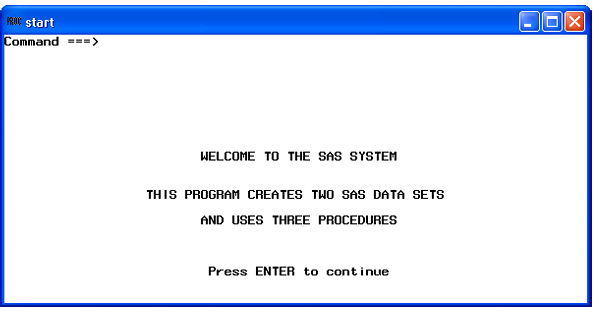
The START window fills the entire monitor. The first line of text is black. The other three lines are the default for your operating environment. The text begins in the column that you specified in your program. The START window does not require you to enter any values. However, to exit the window take one of these actions:
- Press Enter to cause DATA step execution to proceed to the STOP statement.
- Issue the END command.
If you omit the STOP statement from this program, the DATA step executes endlessly until you execute END from the window, either with a function key or from the command line. (Because this DATA step does not read any observations, SAS cannot detect an end-of-file to end DATA step execution.)
Example 2: Displaying Two Windows Simultaneously
These statements assign news articles to reporters. The list of article topics is stored as variable art in SAS data set category.article. This application enables you to assign each topic to a writer and to view the accumulating assignments. The program creates a new SAS data set named Assignment.
libname category 'SAS-library';
data Assignment;
   set category.article end=final;
   drop a b j s o;
   window Assignment irow=1 rows=12 color=white
          #3 @10 'Article:' +1 art protect=yes
          'Name:' +1 name $14.;
   window Showtotal irow=20 rows=12 color=white
          group=subtotal
          #1 @10 'Adams has' +1 a
          #2 @10 'Brown has' +1 b
          #3 @10 'Johnson has' +1 j
          #4 @10 'Smith has' +1 s
          #5 @10 'Other has' +1 o
          group=lastmessage
          #8 @10
          'ALL ARTICLES ASSIGNED.
          Press ENTER to stop processing.';
   display Assignment blank;
   if name='Adams' then a+1;
   else if name='Brown' then b+1;
   else if name='Johnson' then j+1;
   else if name='Smith' then s+1;
   else o+1;
   display Showtotal.subtotal blank noinput;
   if final then display Showtotal.lastmessage;
run;
When you execute the DATA step, these windows appear.
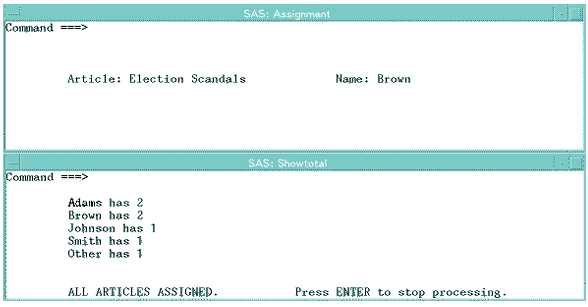
In the Assignment window (located at the top of the monitor), you see the name of the article and a field into which you enter a reporter's name. After you enter a name and press Enter, SAS displays the Showtotal window (located at the bottom of the monitor) that shows the number of articles that are assigned to each reporter (including the assignment that you just made). As you continue to make assignments, the values in the Showtotal window are updated. During the last iteration of the DATA step, SAS displays the message that all articles are assigned, and instructs you to press Enter to stop processing.
Example 3: Persisting and Nonpersisting Fields
This example demonstrates the PERSIST= option. You move from one window to the other by positioning the cursor in the current window and pressing Enter.
data _null_;
   array row{3} r1-r3;
   array col{3} c1-c3;
   input row{*} col{*};
   window One
          rows=20 columns=36
          #1 @14 'PERSIST=YES' color=black
          #(row{i}) @(col{i}) 'Hello'
          color=black persist=yes;
   window Two
          icolumn=43 rows=20 columns=36
          #1 @14 'PERSIST=NO' color=black
          #(row{i}) @(col{i}) 'Hello'
          color=black persist=no;
   do i=1 to 3;
      display One;
      display Two;
   end;
   datalines;
5 10 15 5 10 15
;
These windows show the results of this DATA step after its third iteration.
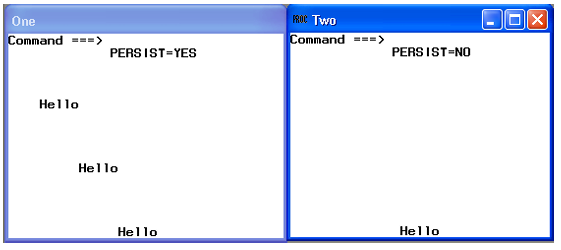
Note that window One
shows Hello in all three positions in which
it was displayed. Window Two shows only the third and final position
in which Hello was displayed.
Example 4: Sending a Message
This example uses the _CMD_ and _MSG_ automatic variables to send a message when you execute an erroneous windowing command in a window that is defined with the WINDOW statement:
if _cmd_ ne ' ' then
   _msg_='CAUTION: UNRECOGNIZED COMMAND' || _cmd_;
When you enter a command that contains an error, SAS sets the value of _CMD_ to the text of the erroneous command. Because the value of _CMD_ is no longer blank, the IF statement is true. The THEN statement assigns to _MSG_ the value that is created by concatenating CAUTION: UNRECOGNIZED COMMAND and the value of _CMD_ (up to a total of 80 bytes). The next time a DISPLAY statement displays that window, the message line of the window displays this message:
CAUTION: UNRECOGNIZED COMMAND commandCommand is the erroneous windowing command.
Example 5: Creating a SAS Data Set
These statements create a SAS data set by using input from the WINDOW statement.
data new;
   length name $20;
   window start
      #3  @20 'Type the variable name'
      #4  @20 'and press the Enter key.'
      #7 'Name:' +1 name attr=underline
      #11 'When you are finished entering variable names, type "end"'
      #12 'at the command line.';
   display start;
run;
proc print;
run;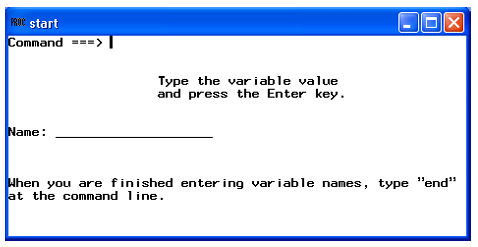
See Also
-
How Many Characters Can I Use When I Measure SAS Name Lengths in Bytes? in SAS Language Reference: Concepts
-
PMENU Procedure in Base SAS Procedures Guide
-
Statements: