INPUT Statement
Describes the arrangement of values in the input data record and assigns input values to the corresponding SAS variables.
| Valid in: | DATA step |
|---|---|
| Category: | File-Handling |
| Type: | Executable |
| Restriction: | This statement is not supported in a DATA step that runs in CAS. |
Table of Contents
- Syntax
- Without Arguments
- Arguments
- Column Pointer Controls
- Line Pointer Controls
- Informat Modifiers for Error Reporting
- Details
- When to Use INPUT
- Input Styles
- Multiple Styles in a Single INPUT Statement
- Pointer Controls
- Reading More Than One Record per Observation
- How Invalid Data Is Handled
- End-of-File
- Arrays
- Comparisons
- Examples
- Example 1: Using Multiple Styles of Input in One INPUT Statement
- Example 2: Using a Null INPUT Statement
- Example 3: Holding a Record in the Input Buffer
- Example 4: Holding a Record across Iterations of the DATA Step
- Example 5: Positioning the Pointer with a Numeric Variable
- Example 6: Positioning the Pointer with a Character Variable
- Example 7: Moving the Pointer Backward
- See Also
Syntax
Without Arguments
The INPUT statement with no arguments is called a null INPUT statement. The null INPUT statement
- brings an input data record into the input buffer without creating any SAS variables
- releases an input data record that is held by a trailing @ or a double trailing @.
For an example, see Using a Null INPUT Statement.
| Note | You cannot read binary files using the INPUT statement without arguments. |
|---|
Arguments
specification(s)
can include
variable
names a variable that is assigned input values.
(variable-list)
specifies a list of variables that are assigned input values.
| Requirement | The (variable-list) is followed by an (informat-list). |
|---|---|
| See | How to Group Variables and Informats |
$
specifies to store the variable value as a character value rather than as a numeric value.
| Tip | If the variable is previously defined as character, $ is not required. |
|---|---|
| Example | Using Multiple Styles of Input in One INPUT Statement |
pointer-control
moves the input pointer to a specified line or column in the input buffer.
| See | Column Pointer Controls and Line Pointer Controls |
|---|
column-specifications
specifies the columns of the input record that contain the value to read.
| Tip | Informats are ignored. Only standard character and numeric data can be read correctly with this method. |
|---|---|
| See | Column Input |
| Example | Using Multiple Styles of Input in One INPUT Statement |
format-modifier
allows modified list input or controls the amount of information that is reported in the SAS log when an error in an input value occurs.
| Tip | Use modified list input to read data that cannot be read with simple list input. |
|---|---|
| See | When to Use List Input and Informat Modifiers for Error Reporting |
| Example | Positioning the Pointer with a Character Variable |
informat.
specifies an informat to use to read the variable value.
| Tip | You can use modified list input to read data with informats. Modified list input is useful when the data require informats but cannot be read with formatted input because the values are not aligned in columns. |
|---|---|
| See | Formatted Input and List Input |
| Example | Using Informat Lists |
(informat-list)
specifies a list of informats to use to read the values for the preceding list of variables.
| Restriction | The (informat-list) must follow the (variable-list). |
|---|---|
| See | How to Group Variables and Informats |
@
holds an input record for the execution of the next INPUT statement within the same iteration of the DATA step. This line-hold specifier is called trailing @.
| Restriction | The trailing @ must be the last item in the INPUT statement. |
|---|---|
| Tip | The trailing @ prevents the next INPUT statement from automatically releasing the current input record and reading the next record into the input buffer. It is useful when you need to read from a record multiple times. |
| See | Using Line-Hold Specifiers |
| Example | Holding a Record in the Input Buffer |
@@
holds the input record for the execution of the next INPUT statement across iterations of the DATA step. This line-hold specifier is called double trailing @.
| Restriction | The double trailing @ must be the last item in the INPUT statement. |
|---|---|
| Tip | The double trailing @ is useful when each input line contains values for several observations, or when a record needs to be reread on the next iteration of the DATA step. |
| See | Using Line-Hold Specifiers |
| Example | Holding a Record across Iterations of the DATA Step |
Column Pointer Controls
@n
moves the pointer to column n.
| Range | a positive integer |
|---|---|
| Tip | If n is not an integer, SAS truncates the decimal value and uses only the integer value. If n is zero or negative, the pointer moves to column 1. |
| Example | @15 moves the pointer to column 15:
|
| Example | Moving the Pointer Backward |
@numeric-variable
moves the pointer to the column given by the value of numeric-variable.
| Range | a positive integer |
|---|---|
| Tip | If numeric-variable is not an integer, SAS truncates the decimal value and uses only the integer value. If numeric-variable is zero or negative, the pointer moves to column 1. |
| Example | The value of the variable A moves the pointer to column
15:
|
| Example | Positioning the Pointer with a Numeric Variable |
@(expression)
moves the pointer to the column that is given by the value of expression.
| Restriction | Expression must result in a positive integer. |
|---|---|
| Tip | If the value of expression is not an integer, SAS truncates the decimal value and uses only the integer value. If it is zero or negative, the pointer moves to column 1. |
| Example | The result of the expression moves the pointer to
column 15:
|
@'character-string'
locates the specified series of characters in the input record and moves the pointer to the first column after character-string.
@character-variable
locates the series of characters in the input record that is given by the value of character-variable and moves the pointer to the first column after that series of characters.
| Example | This statement reads in the WEEKDAY character variable.
The second @1 moves the pointer to the beginning of the input line.
The value for SALES is read from the next non-blank column after the
value of WEEKDAY:
|
|---|---|
| Example | Positioning the Pointer with a Character Variable |
@(character-expression)
locates the series of characters in the input record that is given by the value of character-expression and moves the pointer to the first column after the series.
| Example | Positioning the Pointer with a Character Variable |
+n
moves the pointer n columns.
| Range | a positive integer or zero |
|---|---|
| Tip | If n is not an integer, SAS truncates the decimal value and uses only the integer value. If the value is greater than the length of the input buffer, the pointer moves to column 1 of the next record. |
| Example | This statement moves the pointer to column 23, reads
a value for LENGTH from columns 23 through 26, advances the pointer
five columns, and reads a value for WIDTH from columns 32 through
35:
|
| Example | Moving the Pointer Backward |
+numeric-variable
moves the pointer the number of columns that is given by the value of numeric-variable.
| Range | a positive or negative integer or zero |
|---|---|
| Tip | If numeric-variable is not an integer, SAS truncates the decimal value and uses only the integer value. If numeric-variable is negative, the pointer moves backward. If the current column position becomes less than 1, the pointer moves to column 1. If the value is zero, the pointer does not move. If the value is greater than the length of the input buffer, the pointer moves to column 1 of the next record. |
| Example | Moving the Pointer Backward |
+(expression)
moves the pointer the number of columns given by expression.
| Range | expression must result in a positive or negative integer or zero. |
|---|---|
| Tip | If expression is not an integer, SAS truncates the decimal value and uses only the integer value. If expression is negative, the pointer moves backward. If the current column position becomes less than 1, the pointer moves to column 1. If the value is zero, the pointer does not move. If the value is greater than the length of the input buffer, the pointer moves to column 1 of the next record. |
Line Pointer Controls
#n
moves the pointer to record n.
| Range | a positive integer |
|---|---|
| Interaction | The N= option in the INFILE statement can affect the number of records the INPUT statement reads and the placement of the input pointer after each iteration of the DATA step. See the option N=. |
| Example | The #2 moves the pointer to the second record to read
the value for ID from columns 3 and 4:
|
#numeric-variable
moves the pointer to the record that is given by the value of numeric-variable.
| Range | a positive integer |
|---|---|
| Tip | If the value of numeric-variable is not an integer, SAS truncates the decimal value and uses only the integer value. |
#(expression)
moves the pointer to the record that is given by the value of expression.
| Range | expression must result in a positive integer. |
|---|---|
| Tip | If the value of expression is not an integer, SAS truncates the decimal value and uses only the integer value. |
/
advances the pointer to column 1 of the next input record.
| Example | The values for NAME and AGE are read from the first
input record before the pointer moves to the second record to read
the value of ID from columns 3 and 4:
|
|---|
Informat Modifiers for Error Reporting
?
suppresses printing the invalid data note when SAS encounters invalid data values.
| See | How Invalid Data Is Handled |
|---|
??
suppresses printing the messages and the input lines when SAS encounters invalid data values. The automatic variable _ERROR_ is not set to 1 for the invalid observation.
| See | How Invalid Data Is Handled |
|---|
Details
- When to Use INPUT
- Input Styles
- Multiple Styles in a Single INPUT Statement
- Pointer Controls
- Reading More Than One Record per Observation
- How Invalid Data Is Handled
- End-of-File
- Arrays
When to Use INPUT
Use the INPUT statement to read raw data from an external file or in-stream data. If your data is stored in an external file, you can specify the file in an INFILE statement. The INFILE statement must execute before the INPUT statement that reads the data records. If your data is in-stream, a DATALINES statement must precede the data lines in the job stream. If your data contains semicolons, use a DATALINES4 statement before the data lines. A DATA step that reads raw data can include multiple INPUT statements.
You can also use the INFILE statement to read in-stream data by specifying a filename of DATALINES in the INFILE statement before the INPUT statement. Using DATALINES in the INFILE statement enables you to use most of the options available in the INFILE statement with in-stream data.
To read data that is already stored in a SAS data set, use a SET statement. To read database or PC file-format data that is created by other software, use the SET statement after you access the data with the LIBNAME statement. For more information, see SAS/ACCESS for Relational Databases: Reference and SAS/ACCESS Interface to PC Files: Reference.
Input Styles
Overview of Input Styles
There are four ways to describe a record's values in the INPUT statement:
- column
- list (simple and modified)
- formatted
- named.
Each variable value is read by using one of these input styles. An INPUT statement can contain any or all of the available input styles, depending on the arrangement of data values in the input records. However, once named input is used in an INPUT statement, you cannot use another input style.
Column Input
With column input, the column numbers follow the variable name in the INPUT statement. These numbers indicate where the variable values are found in the input data records.
input name $ 1-8 age 11-12;This INPUT statement can read these data records:
----+----1----+----2----+
Peterson  21
Morgan    17
Because NAME is a character variable, a $ appears between the variable name and column numbers. For more information, see INPUT Statement: Column.
List Input
With list input, the variable names are simply listed in the INPUT statement. A $ follows the name of each character variable:
input name $ age;This INPUT statement can read data values that are separated by blanks or aligned in columns (with at least one blank between):
----+----1----+----2----+
Peterson  21
Morgan  17
For more information, see INPUT Statement: List.
Formatted Input
With formatted input, an informat follows the variable name in the INPUT statement. The informat gives the data type and the field width of an input value. Informats also enable you to read data that are stored in nonstandard form, such as packed decimal, or numbers that contain special characters such as commas.
input name $char8. +2 income comma6.;This INPUT statement reads these data records correctly:
----+----1----+----2----+
Peterson  21,000
Morgan    17,132
The pointer control of +2 moves the input pointer to the field that contains the value for the variable INCOME. For more information, see INPUT Statement: Formatted.
Named Input
With named input, you specify the name of the variable followed by an equal sign. SAS looks for a variable name and an equal sign in the input record:
input name= $ age=;This INPUT statement reads these data records correctly:
----+----1----+----2----+
name=Peterson age=21
name=Morgan age=17
For more information, see INPUT Statement: Named.
Multiple Styles in a Single INPUT Statement
An INPUT statement can contain any or all of the different input styles:
input idno name $18. team $ 25-30 startwght endwght;This INPUT statement reads these data records correctly:
----+----1----+----2----+----3----+----
023 David Shaw         red    189 165
049 Amelia Serrano     yellow 189 165
The value of IDNO, STARTWGHT, and ENDWGHT are read with list input, the value of NAME with formatted input, and the value of TEAM with column input.
Pointer Controls
Overview of Pointers
As SAS reads values from the input data records into the input buffer, it keeps track of its position with a pointer. The INPUT statement provides three ways to control the movement of the pointer:
- column pointer controls
-
reset the pointer's column position when the data values in the data records are read.
- line pointer controls
-
reset the pointer's line position when the data values in the data records are read.
- line-hold specifiers
-
hold an input record in the input buffer so that another INPUT statement can process it. By default, the INPUT statement releases the previous record and reads another record.
With column and line pointer controls, you can specify an absolute line number or column number to move the pointer or you can specify a column or line location relative to the current pointer position. This table lists the pointer controls that are available with the INPUT statement.
|
Pointer Controls |
Relative |
Absolute |
|---|---|---|
|
column pointer controls |
+n |
@n |
|
|
+numeric-variable |
@numeric-variable |
|
|
+(expression) |
@(expression) |
|
|
|
@'character-string' |
|
|
|
@character-variable |
|
|
|
@(character-expression) |
|
line pointer controls |
/ |
#n |
|
|
|
#numeric-variable |
|
|
|
#(expression) |
|
line-hold specifiers |
@ |
(not applicable) |
|
|
@@ |
(not applicable) |
You can use the COLUMN= and LINE= options in the INFILE statement to determine the pointer's current column and line location.
Using Column and Line Pointer Controls
Column pointer controls indicate the column in which an input value starts.
Use line pointer controls within the INPUT statement to move to the next input record or to define the number of input records per observation. Line pointer controls specify which input record to read. To read multiple data records into the input buffer, use the N= option in the INFILE statement to specify the number of records. If you omit N=, you need to take special precautions. For more information, see Reading More Than One Record per Observation.
Using Line-Hold Specifiers
Line-hold specifiers keep the pointer on the current input record when
- a data record is read by more than one INPUT statement (trailing @)
- one input line has values for more than one observation (double trailing @)
- a record needs to be reread on the next iteration of the DATA step (double trailing @).
Use a single trailing @ to allow the next INPUT statement to read from the same record. Use a double trailing @ to hold a record for the next INPUT statement across iterations of the DATA step.
Normally, each INPUT statement in a DATA step reads a new data record into the input buffer. When you use a trailing @, the following occurs:
- The pointer position does not change.
- No new record is read into the input buffer.
- The next INPUT statement for the same iteration of the DATA step continues to read the same record rather than a new one.
SAS releases a record held by a trailing @ when
- a null INPUT statement
executes:
input; - an INPUT statement without a trailing @ executes
- the next iteration of the DATA step begins.
Normally, when you use a double trailing @ (@@), the INPUT statement for the next iteration of the DATA step continues to read the same record. SAS releases the record that is held by a double trailing @
- immediately if the pointer moves past the end of the input record
- immediately if a null
INPUT statement executes:
input; - when the next iteration
of the DATA step begins if an INPUT statement with a single trailing
@ executes later in the DATA step:
input @;
Pointer Location After Reading
Understanding the location of the input pointer after a value is read is important, especially if you combine input styles in a single INPUT statement. With column and formatted input, the pointer reads the columns that are indicated in the INPUT statement and stops in the next column. With list input, however, the pointer scans data records to locate data values and reads a blank to indicate that a value has ended. After reading a value with list input, the pointer stops in the second column after the value.
For example, you can read these data records with list, column, and formatted input:
----+----1----+----2----+----3
REGION1    49670
REGION2    97540
REGION3    86342
This INPUT statement uses list input to read the data records:
input region $ jansales;After reading a value for REGION, the pointer stops in column 9.
----+----1----+----2----+----3
REGION1    49670
        ↑
These INPUT statements use column and formatted input to read the data records:
- column input
input region $ 1-7 jansales 12-16; - formatted input
input region $7. +4 jansales 5.;
input region $7. @12 jansales 5.;
To read a value for the variable REGION, the INPUT statements instruct the pointer to read seven columns and stop in column 8.
----+----1----+----2----+----3
REGION1    49670
       ↑
Reading More Than One Record per Observation
Using the # Pointer Control
The highest number that follows the # pointer control in the INPUT statement determines how many input data records are read into the input buffer. Use the N= option in the INFILE statement to change the number of records. For example, in this statement, the highest value after the # is 3:
input @31 age 3. #3 id 3-4 #2 @6 name $20.;Unless you use N= in the associated INFILE statement, the INPUT statement reads three input records each time the DATA step executes.
When each observation has multiple input records but values from the last record are not read, you must use a # pointer control in the INPUT statement or N= in the INFILE statement to specify the last input record. For example, if there are four records per observation, but only values from the first two input records are read, use this INPUT statement:
input name $ 1-10 #2 age 13-14 #4;When you have advanced to the next record with the / pointer control, use the # pointer control in the INPUT statement or the N= option in the INFILE statement to set the number of records that are read into the input buffer. To move the pointer back to an earlier record, use a # pointer control. For example, this statement requires the #2 pointer control, unless the INFILE statement uses the N= option, to read two records:
input a / b #1 @52 c #2;The INPUT statement assigns A a value from the first record. The pointer advances to the next input record to assign B a value. Then the pointer returns from the second record to column 1 of the first record and moves to column 52 to assign C a value. The #2 pointer control identifies two input records for each observation so that the pointer can return to the first record for the value of C.
If the number of input records per observation varies, use the N= option in the INFILE statement to give the maximum number of records per observation. For more information, see N= option.
Reading Past the End of a Line
When you use @ or + pointer controls with a value that moves the pointer to or past the end of the current record and the next value is to be read from the current column, SAS goes to column 1 of the next record to read it. It also writes this message to the SAS log:
NOTE: SAS went to a new line when INPUT statement
      reached past the end of a line.
You can alter the default behavior (the FLOWOVER option) in the INFILE statement.
Use the STOPOVER option in the INFILE statement to treat this condition as an error and to stop building the data set.
Use the MISSOVER option in the INFILE statement to set the remaining INPUT statement variables to missing values if the pointer reaches the end of a record.
Use the TRUNCOVER option in the INFILE statement to read column input or formatted input when the last variable that is read by the INPUT statement contains varying-length data.
Positioning the Pointer before the Record
When a column pointer control tries to move the pointer to a position before the beginning of the record, the pointer is positioned in column 1. For example, this INPUT statement specifies that the pointer is located in column −2 after the first value is read:
data test;
   input a @(a-3) b;
   datalines;
 2
;
Therefore, SAS moves the pointer to column 1 after the value of A is read. Both variables A and B contain the same value.
How Invalid Data Is Handled
When SAS encounters an invalid character in an input value for the variable indicated, it
- sets the value of the variable that is being read to missing or the value that is specified with the INVALIDDATA= system option. For more information, see INVALIDDATA= System Option in SAS System Options: Reference.
- prints an invalid data note in the SAS log.
- prints the input line and column number that contains the invalid value in the SAS log. Unprintable characters appear in hexadecimal. To help determine column numbers, SAS prints a rule line above the input line.
- sets the automatic variable _ERROR_ to 1 for the current observation.
The format modifiers for error reporting control the amount of information that is printed in the SAS log. Both the ? and ?? modifiers suppress the invalid data message. However, the ?? modifier also resets the automatic variable _ERROR_ to 0. For example, these two sets of statements are equivalent:
input x ?? 10-12;input x ? 10-12;
_error_=0;In either case, SAS sets invalid values of X to missing values. For information about the causes of invalid data, see SAS Language Reference: Concepts.
End-of-File
End-of-file occurs when an INPUT statement reaches the end of the data. If a DATA step tries to read another record after it reaches an end-of-file, then execution stops. If you want the DATA step to continue to execute, use the END= or EOF= option in the INFILE statement. Then you can write SAS program statements to detect the end-of-file, and to stop the execution of the INPUT statement but continue with the DATA step. For more information, see INFILE Statement.
Arrays
The INPUT statement can use array references to read input data values. You can use an array reference in a pointer control if it is enclosed in parentheses. See Positioning the Pointer with a Character Variable.
Use the array subscript asterisk (*) to read in all elements of a previously defined explicit array. SAS allows single or multidimensional arrays. Enclose the subscript in braces, brackets, or parentheses. Here is the form of this statement:
inputarray-name{*};You can use arrays with list, column, or formatted input. However, you cannot read in values to an array that is defined with _TEMPORARY_ and that uses the asterisk subscript. For example, these statements create variables X1 through X100 and assign data values to the variables using the 2. informat:
array x{100};
input x{*} 2.;
Comparisons
- The INPUT statement reads raw data in external files or data lines that are entered in-stream (following the DATALINES statement) that need to be described to SAS. The SET statement reads a SAS data set, which already contains descriptive information about the data values.
- The INPUT statement reads data while the PUT statement writes data values, text strings, or both to the SAS log or to an external file.
- The INPUT statement can read data from external files; the INFILE statement points to that file and has options that control how that file is read.
Examples
Example 1: Using Multiple Styles of Input in One INPUT Statement
This example uses several input styles in a single INPUT statement:
data club1;
   input Idno Name $18.
      Team $ 25-30 Startwght Endwght;
   datalines;
023 David Shaw         red    189 165
049 Amelia Serrano     yellow 189 165
... more data lines ...
;
This table identifies the type of input styles.
|
Variable |
Type of Input |
|
|---|---|---|
|
Idno, Startwght, Endwght |
list input |
|
|
Name |
formatted input |
|
|
Team |
column input |
|
Example 2: Using a Null INPUT Statement
This example uses an INPUT statement with no arguments. The DATA step copies records from the input file to the output file without creating any SAS variables:
data _null_;
   infile file-specification-1;
   file file-specification-2;
   input;
   put _infile_;
run;
Example 3: Holding a Record in the Input Buffer
This example reads a file that contains two types of input data records and creates a SAS data set from these records. One type of data record contains information about a particular college course. The second type of record contains information about the students enrolled in the course. You need two INPUT statements to read the two records and to assign the values to different variables that use different formats. Records that contain class information have a C in column 1; records that contain student information have an S in column 1, as shown here:
----+----1----+----2----+
C HIST101 Watson
S Williams 0459
S Flores   5423
C MATH202 Sen
S Lee      7085
To know which INPUT statement to use, check each record as it is read. Use an INPUT statement that reads only the variable that tells whether the record contains class or student.
data schedule(drop=type);
   retain Course Professor;
   input type $1. @;
   if type='C' then
      input course $ professor $;
   else if type='S' then
      do;
        input Name $10. Id;
        output schedule;
      end;
datalines;
C HIST101 Watson
S Williams 0459
S Flores   5423
C MATH202 Sen
S Lee      7085
;
run;

proc print;
run;
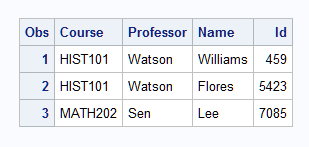
The first INPUT statement reads the TYPE value from column 1 of every line. Because this INPUT statement ends with a trailing @, the next INPUT statement in the DATA step reads the same line. The IF-THEN statements that follow check whether the record is a class or student line before another INPUT statement reads the rest of the line. The INPUT statements without a trailing @ release the held line. The RETAIN statement saves the values about the particular college course. The DATA step writes an observation to the SCHEDULE data set after a student record is read.
This output that PROC PRINT generates shows the resulting data set SCHEDULE.
Data Set Schedule
Example 4: Holding a Record across Iterations of the DATA Step
This example shows how to create multiple observations for each input data record. Each record contains several NAME and AGE values. The DATA step reads a NAME value and an AGE value, writes an observation, and then reads another set of NAME and AGE values to output, and so on, until all the input values in the record are processed.
data test;
   input name $ age @@;
   datalines;
John 13 Monica 12 Sue 15 Stephen 10
Marc 22 Lily 17
;
The INPUT statement uses the double trailing @ to control the input pointer across iterations of the DATA step. The SAS data set contains six observations.
Example 5: Positioning the Pointer with a Numeric Variable
This example uses a numeric variable to position the pointer. A raw data file contains records with the employment figures for several offices of a multinational company. The input data records are
----+----1----+----2----+----3----+
8      New York    1 USA 14
5   Cary           1 USA 2274
3 Chicago          1 USA 37
22 Tokyo           5 ASIA 80
5   Vancouver      2 CANADA 6
9       Milano     4 EUROPE 123
The first column has the column position for the office location. The next numeric column is the region category. The geographic region occurs before the number of employees in that office.
You determine the office location by combining the @numeric-variable pointer control with a trailing @. To read the records, use two INPUT statements. The first INPUT statement obtains the value for the @ numeric-variable pointer control. The second INPUT statement uses this value to determine the column that the pointer moves to.
data office (drop=x);
   infile file-specification;
   input x @;
   if 1<=x<=10 then
      input @x City $9.;
   else do;
      put 'Invalid input at line ' _n_;
      delete;
   end;
run;
The DATA step writes only five observations to the OFFICE data set. The fourth input data record is invalid because the value of X is greater than 10. Therefore, the second INPUT statement does not execute. Instead, the PUT statement writes a message to the SAS log and the DELETE statement stops processing the observation.
Example 6: Positioning the Pointer with a Character Variable
This example uses character variables to position the pointer. The OFFICE data set, created in Positioning the Pointer with a Numeric Variable, contains a character variable CITY whose values are the office locations. Suppose you discover that you need to read additional values from the raw data file. By using another DATA step, you can combine the @character-variable pointer control with a trailing @ and the @character-expression pointer control to locate the values.
If the observations in OFFICE are still in the order of the original input data records, you can use this DATA step:
data office2;
   set office;
   infile file-specification;
   array region {5} $ _temporary_
         ('USA' 'CANADA' 'SA' 'EUROPE' 'ASIA');
   input @city Location : 2. @;
   input @(trim(region{location})) Population : 4.;
run;
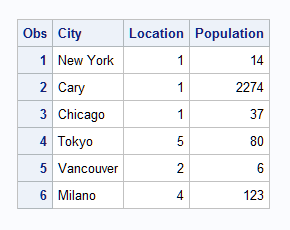
The ARRAY statement assigns initial values to the temporary array elements. These elements correspond to the geographic regions of the office locations. The first INPUT statement uses an @character-variable pointer control. Each record is scanned for the series of characters in the value of CITY for that observation. Then the value of LOCATION is read from the next non-blank column. LOCATION is a numeric category for the geographic region of an office. The second INPUT statement uses an array reference in the @character-expression pointer control to determine the location POPULATION in the input records. The expression also uses the TRIM function to trim trailing blanks from the character value. In this way an exact match is found between the character string in the input data and the value of the array element.
This output that PROC PRINT generates shows the resulting data set OFFICE2.
Data Set OFFICE2
Example 7: Moving the Pointer Backward
This example shows several ways to move the pointer backward.
- This INPUT statement
uses the @ pointer control to read a value for BOOK starting at column
26. Then the pointer moves back to column 1 on the same line to read
a value for COMPANY:
input @26 book $ @1 company; - These INPUT statements
use +numeric-variable or +(expression)
to move the pointer backward one column. These two sets of statements
are equivalent.
m=-1;
input x 1-10 +m y 2.;
input x 1-10 +(-1) y 2.;